

 WordPress & YOOtheme Pro
 WooCommerce Development
 Website Planning
 Website Ownership & Access
 Website Support & Growth
 Website Launch Checklist
Business Email and Website Inquiries: Make Sure the Message Reaches the Business

A visitor fills out a form and sees “Thank you.” The business sees nothing. This gap can exist on a website that otherwise looks complete, because a form, its sending service, the receiving mailbox, and a CRM are separate parts of the system.
I use Zoho Mail for business email and connect Zoho CRM when it is needed. This guide explains how to establish the domain’s email identity, configure website notifications, and verify the full inquiry path within your website infrastructure.
Separate the three routes
Incoming email: route messages to the business mailbox
Incoming business email: an external sender looks up the domain’s MX records and sends to the configured mailbox provider.
Website notifications: send through an authorized service
Website notifications: WordPress submits a message through its configured sending method, which then attempts delivery to the recipient.
CRM capture: create and assign the inquiry record
CRM capture: the chosen form or integration sends structured information into the CRM, where fields, assignment rules, and processing determine the resulting record.
Success in one route does not prove success in another. A working Zoho inbox does not automatically authorize WordPress to send. Receiving a notification does not prove that the CRM saved the inquiry.
Organize addresses around real responsibility
Choose inquiry recipients, mailboxes, and shared addresses
Decide who should receive inquiries, who will reply, and what should happen when that person is absent. Distinguish an individual mailbox from an alias or group address; their access and delivery behavior differ.
Use an address the business expects to maintain. A developer’s personal inbox should not become the permanent destination for customer inquiries or account recovery.
Keep Zoho ownership and migration responsibilities clear
Create the organization and required users under the client’s control. Record administrative ownership, billing, and recovery. Select a Zoho plan that supports the mailbox and connection methods required by the project; do not assume every plan or region exposes identical functionality.
When replacing an existing mail provider, treat migration as separate work. Creating the new account and changing MX records does not move stored messages, contacts, or client configuration.
Verify the domain and configure incoming delivery
Verify domain ownership and publish the correct MX records
Add the domain to the Zoho organization and complete ownership verification using the records supplied in its administration interface. Publish them at the authoritative DNS provider, which may be Cloudflare rather than the registrar.
Create the intended users and addresses before directing mail to them. Configure the MX records shown for that organization and verify the result in Zoho. Values can depend on the account’s data center, so copy the account-specific instructions instead of a generic record list. Zoho mail-delivery setup
Remove obsolete MX records and check the active DNS zone
Remove obsolete MX entries when completing a deliberate switch, unless a supported coexistence arrangement requires them. Leaving two unrelated provider sets in place is not a simple backup-mail strategy.
Use the domain and DNS guide if the changes are not appearing publicly. Confirm you are editing the active zone before changing the same values repeatedly.
Authenticate the actual senders
Understand SPF, DKIM, and DMARC for each sending route
SPF, DKIM, and DMARC serve related but different purposes. SPF identifies authorized sending sources for the relevant envelope domain. DKIM signs messages using a domain’s key. DMARC evaluates alignment with the visible From domain and specifies policy and reporting behavior.
Inventory every legitimate sending route before changing policy: ordinary mailboxes, website notifications, CRM messages, and any separately configured transactional or campaign service. Do not assume that enabling authentication for Zoho Mail configures every other product automatically.
Configure SPF and DKIM, then review DMARC alignment
Maintain one valid SPF policy at a given name rather than publishing a separate conflicting SPF record for each sender. Follow provider guidance for combining sources and limits. Create the DKIM record at the exact selector supplied, verify it, and enable signing as required by the service. Zoho SPF setup, Zoho DKIM setup
Roll out DMARC with visibility into legitimate mail. Review authentication and alignment before enforcing a policy that could reject the business’s own messages. Authentication is necessary infrastructure work, but it does not guarantee inbox placement. Zoho DMARC policy guidance
Configure WordPress to send with an authorized identity
Choose a supported SMTP connection for WordPress
Choose a supported sending method for the account and the site’s expected volume. For SMTP, use Zoho’s account-appropriate server, encryption, port, and authentication method. Availability and authentication requirements must be checked against the actual plan and account settings. Zoho SMTP documentation
Set a business From address and the visitor’s Reply-To
Use an authorized business address as the message’s From identity. Put the visitor’s email in Reply-To when appropriate so the business can respond naturally. Pretending that the server owns every visitor’s address can cause authentication and delivery problems.

Protect mail credentials and document the active transport
Store credentials through a suitable secret-management arrangement and restrict who can change the sending configuration. Do not paste SMTP passwords into a public brief, source repository, or screenshot.
Pick one clear implementation for outgoing mail and document it. Multiple plugins attempting to redirect mail can make it unclear which transport is active. A successful plugin test email is useful, but the real form still needs its own test.
Give the form a useful failure behavior
Validate inquiries and preserve recoverable submissions
Collect what is needed to understand the inquiry without requiring a long technical questionnaire. Validate essential fields and explain errors beside the affected inputs. Preserve entered data when a recoverable submission error occurs.
Decide whether submissions are stored and where. If there is a recoverable submission record, restrict access and define its retention. If there is no stored record, make that limitation clear to the owner; email sending alone does not necessarily leave a retrievable copy inside WordPress.
Control retries and test spam protection
Avoid unlimited retries that create duplicate messages or records. Where an integration retries requests, use a submission identifier or another suitable method to distinguish a retry from a new inquiry.
Spam protection should be tested with ordinary legitimate submissions, including mobile behavior. It should not become the reason potential customers cannot contact the business.
Connect Zoho CRM when the workflow needs it
Map form fields and record ownership in Zoho CRM
Choose the target module and required fields, then map the form data to them. Decide who owns a new record, how its source is identified, and whether approval or duplicate handling applies.
Zoho CRM webforms provide a route to capture website submissions, with their own configuration and processing behavior. Other integrations need equivalent mapping and verification. Creating a mailbox is not the same as implementing that workflow. Zoho CRM webforms
Test CRM duplicates, approval queues, and transfer failures
Test a new inquiry and a repeat inquiry using the same email address. Check the record, assignment, notifications, and any approval queue. If the form says success but the record is missing, inspect CRM processing and validation rather than assuming the mail server lost it.
Define how the business will notice a failed CRM transfer. A notification email or secured submission log can provide a fallback when it is actually configured. Do not describe a fallback as present merely because it would be useful.
Test the routes independently, then together
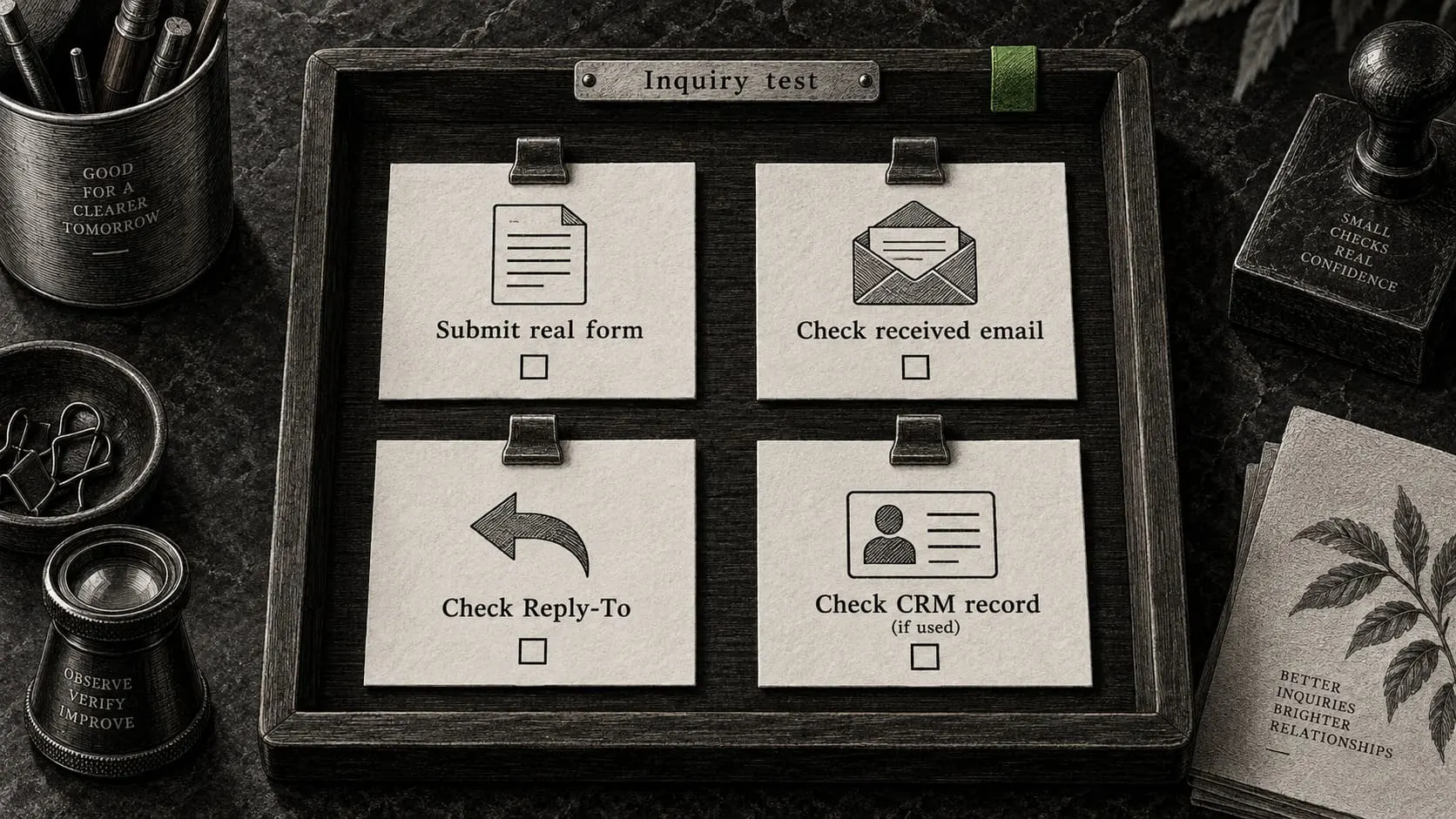
Verify mailbox delivery, website notifications, and CRM capture
| Test | Evidence of a working route |
|---|---|
| External address sends to the business | The intended mailbox receives the message |
| Business replies externally | The reply arrives and shows the intended identity |
| WordPress transport test | The sending service accepts the authorized message and the test recipient receives it |
| Real website inquiry | Correct confirmation, notification contents, recipient, and Reply-To behavior |
| CRM capture, if included | Correct record, source, fields, owner, and duplicate behavior |
| Authentication review | The received message headers show the expected authentication results |
Record delivery evidence and repeat tests after changes
Use more than one external mailbox provider when practical, and inspect spam folders as well as the inbox. Record message timestamps and relevant identifiers to help trace a failure.
Test again after DNS changes, credential rotation, mail-plugin changes, or a restored website. A restored backup can contain an outdated recipient or sending credential even when the public page looks current.
Diagnose the missing message
Distinguish mailbox delivery failures from WordPress sending errors
If no external mail arrives, check MX, account readiness, recipient existence, and provider handling. If ordinary mailbox mail works but forms fail, inspect the WordPress transport and its errors.
If the sending service accepts a message but the recipient does not see it, inspect delivery or rejection evidence, filtering, the destination address, and authentication. “Accepted for sending” is not the same event as “arrived in the inbox.”
Check missing CRM records and incorrect reply destinations
If the email arrives but the CRM record does not, inspect field validation, assignment or approval behavior, duplicate processing, and integration errors. If replies go to the wrong place, review From and Reply-To separately.
Use the evidence to identify the failing boundary. Replacing the form plugin, mail provider, and DNS configuration together usually destroys the opportunity to find the original cause.
Preserve the route after launch
Document inquiry routing and assign an owner
Keep a named recipient for inquiry issues. Document the mail organization, sending integration, form destinations, and CRM configuration in the ownership inventory.
Retest integrations after credential changes and handover
Coordinate credential changes with the running integrations and repeat the end-to-end test. If the website is handed over without ongoing management, the owner or chosen maintainer takes responsibility for this route.
The launch checklist includes form acceptance. Continued technical responsibility connects with server maintenance, while broader workflow development belongs in the appropriate automation scope.
Frequently asked questions
Can my website and email be hosted by different providers?
Yes. Website and mail traffic follow different DNS records. In this setup, the WordPress server and Zoho Mail are separate services connected through the same business domain.
Is Zoho CRM included automatically with Zoho Mail?
Do not assume that. Account products, licensing, and the actual integration must be checked. I connect CRM where needed, with its fields and routing configured for the project.
Why does the form need a business From address?
The sending route needs an identity it is authorized to use. The visitor’s address can be used for replies without asking your server to impersonate their mail provider.
Does a successful SMTP test prove the form works?
No. The form may use a different configuration, fail validation, address the wrong recipient, or produce a message with different headers. Test a real submission through the live form.
Can SPF and DKIM guarantee that messages avoid spam?
No. They support authenticated sending, but destination filtering also considers other signals and policies. Inspect actual delivery outcomes and do not promise universal inbox placement.
Can the website send large marketing campaigns through this setup?
Do not assume an ordinary mailbox transport is suitable for bulk sending. Review the relevant provider’s product, limits, and intended use before planning campaigns. This guide concerns business mail and website inquiry delivery.
Connect your business email and inquiries
Tell me which domain you use, who should receive inquiries, and whether you need a CRM route. I can configure Zoho and the website connections and verify the path from submission to a usable business record.